
If your website suddenly shows warnings like “Deceptive Site Ahead,” “This Site May Be Hacked,” or “Dangerous Website,” your site may have been blacklisted by Google Safe Browsing.
A Google blacklist warning can seriously damage your website traffic, SEO rankings, reputation, and customer trust. Visitors may avoid your website completely after seeing security warnings in browsers or search results.
In this guide, you will learn how to identify, remove, and prevent Google blacklist warnings from your WordPress website.
Related WordPress Security Guides
Need professional cleanup? Check our WordPress Malware Removal Service for malware removal and blacklist cleanup.
If your website contains spam pages, read our Japanese Keyword Hack Removal Guide.
Facing malicious redirects? Follow our Redirect Hack Fix Guide.
Learn the complete cleanup process in our How to Remove Malware From WordPress guide.
What Is Google Blacklisting?
Google blacklisting happens when Google detects malware, phishing content, spam, or dangerous scripts on a website. If your website has been blacklisted by Google, visitors may see security warnings before accessing your pages. A proper website blacklist removal process requires malware cleanup, security hardening, and Safe Browsing review requests.
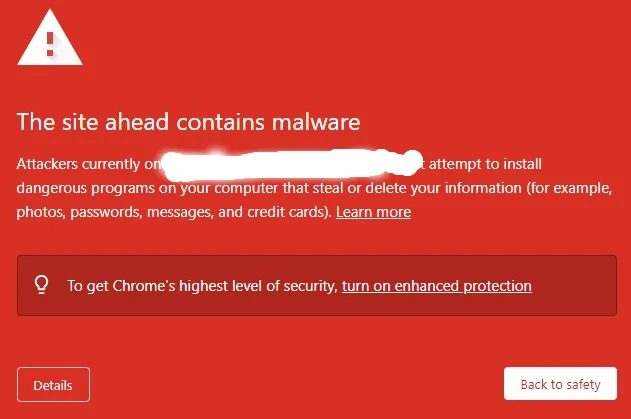
Once flagged, Google may:
- show browser security warnings
- remove pages from search results
- display hacked website notices
- reduce rankings
- block visitors from accessing the site
Google Safe Browsing helps protect users from malicious websites.
Common Google Blacklist Warnings
Your website may display warnings such as:
- Deceptive Site Ahead
- This Site May Be Hacked
- Dangerous Website
- Malware Detected
- Phishing Warning
- Unsafe Website
These warnings can appear in:
- Google Chrome
- Firefox
- Safari
- Google Search results
Signs Your Website Is Blacklisted by Google
1. Browser security warning appears
Visitors may see a red warning page before accessing your website.
2. Sudden traffic drop
Blacklisted websites often lose organic traffic quickly.
3. Website removed from Google search
Google may deindex infected pages or entire websites.
4. Google Search Console security alerts
Search Console may report:
- malware infection
- hacked content
- phishing pages
- harmful downloads
5. Hosting suspension
Some hosting companies suspend infected websites automatically.
Why Websites Get Blacklisted
Malware infection
Hackers may inject:
- malicious JavaScript
- spam pages
- phishing forms
- hidden redirects
- SEO spam attacks
Spam content such as Japanese keyword spam can trigger blacklist warnings.
Redirect malware
Visitors may be redirected to dangerous websites without permission.
Phishing pages
Fake login pages and scam forms can cause Safe Browsing warnings.
Vulnerable plugins and themes
Outdated or nulled plugins are common attack points.
How To Check If Your Website Is Blacklisted
Check Google Safe Browsing
Use Google Transparency Report to check website status. Search your domain and review warnings.
Check Google Search Console
Open:
- Security Issues
- Manual Actions
- Indexed Pages
Look for malware or hacked content alerts.
Search your website in Google
Search: site:yourdomain.com
Check for:
- spam pages
- Japanese text
- unknown URLs
- hacked content
Test website in browsers
Open your website in:
- Chrome
- Firefox
- Safari
- Mobile browser
Security warnings may appear differently.
How To Remove Google Blacklist Warning
Step 1: Backup your website
Create a full backup before cleanup. You can take website backup manually or automatic.
Backup:
- website files
- database
- themes
- plugins
Step 2: Put website in maintenance mode
Prevent visitors from accessing infected pages during cleanup.
Step 3: Scan website for malware
Check for:
- malicious scripts
- spam pages
- hidden redirects
- injected code
- phishing files
Common infected files include:
- wp-config.php
- .htaccess
- functions.php
- header.php
- footer.php
Step 4: Remove malware and hacked files
Delete:
- suspicious PHP files
- spam pages
- injected scripts
- fake admin users
- malicious redirects
Replace infected WordPress core files with clean copies.
Step 5: Clean database spam
Inspect database tables:
- wp_posts
- wp_options
- wp_postmeta
Remove:
- spam links
- malicious JavaScript
- phishing content
- SEO spam pages
Step 6: Change all passwords
Reset passwords for:
- WordPress admin
- hosting account
- FTP
- database
- email accounts
Step 7: Remove backdoors
Hackers often leave hidden access points behind. Backdoors can reinfect websites after cleanup.
Step 8: Update plugins and themes
Update everything to latest versions.
Remove:
- unused plugins
- nulled themes
- abandoned plugins
Step 9: Request Google blacklist review
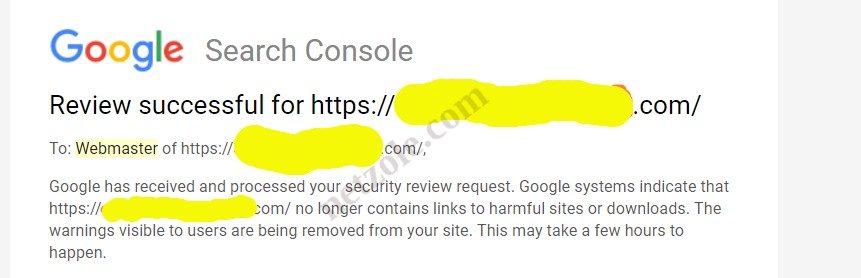
After cleanup:
- Open Google Search Console
- Go to Security Issues
- Click “Request Review”
- Explain cleanup actions performed
Google usually reviews websites within several days.
How Long Does Google Blacklist Removal Take?
Recovery time depends on the infection severity.
| Process | Estimated Time |
|---|---|
| Malware cleanup | Few hours |
| Google review | 1–7 days |
| Search ranking recovery | Several weeks |
| Spam page removal | 1–4 weeks |
Common Malware Types That Cause Blacklisting
Japanese keyword spam
Creates spam pages and fake product listings.
Redirect malware
Sends visitors to malicious websites.
Phishing malware
Steals user information using fake forms.
Backdoor malware
Allows attackers to regain website access.
SEO spam malware
Injects hidden links and spam pages into search results.
How To Prevent Future Google Blacklisting
Keep WordPress updated.
Always update:
- WordPress core
- plugins
- themes
Avoid nulled plugins
Pirated software often contains malware.
Use strong passwords
Use complex passwords with uppercase letters, numbers and symbols.
Enable two-factor authentication
2FA adds extra login protection.
Install website monitoring
Security monitoring can detect:
- malware
- suspicious activity
- file changes
- unauthorized logins
Take regular backups
Daily backups help restore websites quickly.
Real Example of Google Blacklisting
One infected WooCommerce website suddenly lost most of its organic traffic after Google detected hidden phishing pages and spam redirects.
The attackers had injected malicious code into theme files and created hidden admin users.
After malware cleanup, blacklist review requests, and security hardening, Google warnings were removed and search visibility gradually recovered over several weeks.
Why Is My Website Blacklisted By Google?
Google may blacklist a website after detecting malware, phishing content, spam pages, malicious redirects, harmful downloads, or hacked website files. These security issues can trigger Safe Browsing warnings and reduce search visibility.
Frequently Asked Questions
What Is Google Safe Browsing?
Google Safe Browsing is a security system that protects users from dangerous websites. When malware, phishing content, or harmful scripts are detected, Google may display warning messages in search results and web browsers.
What causes Google blacklist warnings?
Google blacklist warnings usually appear after malware infections, phishing pages, spam redirects, or hacked content are detected.
Can Google remove blacklist warnings automatically?
No. Website owners usually need to clean the infection and request a review.
How long does Safe Browsing blacklist removal take?
Google reviews are often completed within a few days, but recovery times vary.
Can blacklisted websites recover SEO rankings?
Yes. Rankings may recover gradually after malware removal and Google review approval.
Can malware return after blacklist removal?
Yes. Hidden backdoors or vulnerable plugins can cause reinfection.
Final Thoughts
A Google blacklist warning can seriously damage your website reputation, SEO rankings, and customer trust. Simply removing visible malware is not enough because hidden backdoors and infected files may still remain.
A complete cleanup process should include:
- malware removal
- spam cleanup
- redirect removal
- database cleanup
- password resets
- security hardening
- blacklist review request
Fixing the root cause is the best way to prevent future blacklisting issues.